Jump to content
View in the app

A better way to browse. Learn more.

300ZX Owners Club

A full-screen app on your home screen with push notifications, badges and more.

To install this app on iOS and iPadOS
  1. Tap the Share icon in Safari
  2. Scroll the menu and tap Add to Home Screen.
  3. Tap Add in the top-right corner.
To install this app on Android
  1. Tap the 3-dot menu (⋮) in the top-right corner of the browser.
  2. Tap Add to Home screen or Install app.
  3. Confirm by tapping Install.
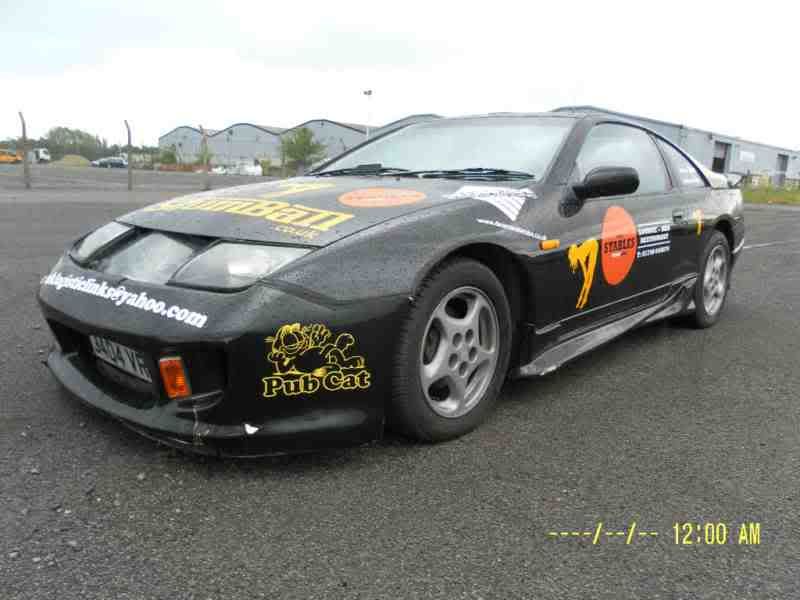
300zx-3.jpg what bumper is this please anyone, its totally impractical as sits bout 2 inches from ground. will be removing asap

Featured Replies

cheers m8, what about side skirts?


Veilside from the same place as above

smithy

not what the rear is, but it's probably somewhere on here:


http://300zx.co.uk/forums/showthread.php?t=133972


lots of after market kits are. :thumbup1:


Check out the FAQs as there are some very usefull bits in there.


And i reckon if done well and on the right zed, that front bumper would look super cool.

Edited by Pablito

Please do not buy, the less Zeds that look like that black one the better


agreed thats not a pretty sight.. :confused1:

i think a decent set of wheels and a spoiler .. ohh and get rid of the decals it would look ok ...

  • Author

yeah its mine, ive removed the decals want rid of front and rear bumper, already removed the side skirts. does the standard z have side skirts?

yeah its mine, ive removed the decals want rid of front and rear bumper, already removed the side skirts. does the standard z have side skirts?


Not generally but the 99 spec did :)

  • Author

also looking for some 19s and high level spoiler, sir charles, what front bumper is that on yours?

Join the conversation

You can post now and register later. If you have an account, sign in now to post with your account.

Guest
Unfortunately, your content contains terms that we do not allow. Please edit your content to remove the highlighted words below.
Reply to this topic...

Recently Browsing 0

  • No registered users viewing this page.

Important Information

Terms of Use

Configure browser push notifications

Chrome (Android)
  1. Tap the lock icon next to the address bar.
  2. Tap Permissions → Notifications.
  3. Adjust your preference.
Chrome (Desktop)
  1. Click the padlock icon in the address bar.
  2. Select Site settings.
  3. Find Notifications and adjust your preference.